
I’ve been developing some tutorials for our users on local network and posting them on our Sharepoint Intranet. Most of our users use Windows Terminal Server 2003 to connect to the Intranet though, and by default sound on Windows Terminal Server is disabled.
By the way, if you are trying to do this enable sound on Windows Terminal Server 2000 it is not possible as the Remote Desktop Protocol used in Windows Server 2000 does not support it.
There are two ways that you can enable sound on Windows Terminal Server 2003. One is through Terminal Services Configuration on the Terminal Server, and the other is through the Group Policies. Depending on how you have Group Policies configured you may need to do both. In this tutorial we will look at the first option:
Enable the Sound on the Windows Terminal Server
Enabling the sound on the Windows Terminal Server is a simple, four step process.
- In Terminal Services Configuration, click on “Connections”
- Double-click RDP-Tcp
- Click on the “Silent Settings” tab
- Clear the check-mark from the Audio mapping box
Below is a screen shot of the configuration window:
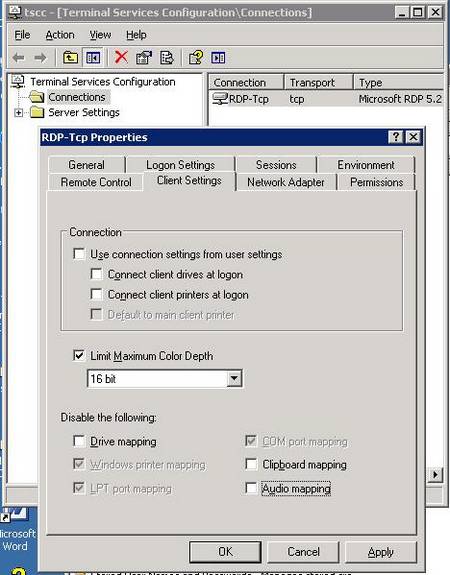
This setting will now apply to all new Windows Terminal Server sessions, but the individual clients will also need to enable the feature on their local computer.
Enable the Sound in Remote Desktop Client
- Open your Remote Desktop Client
- Click on the “Options” button
- Click on the “Local Resources” tab
- Change the “Remote Computer Sounds” dropdown to “Bring to this Computer”
- Then apply the changes.
Here is a screen shot of that configuration window:
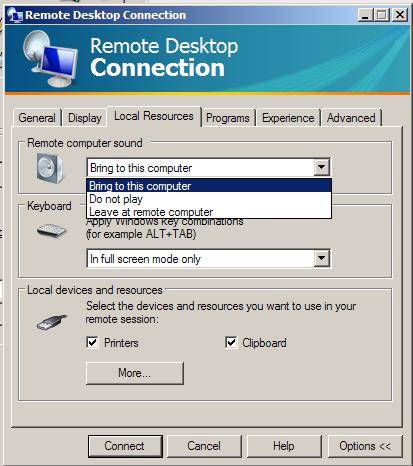
Then after connecting you should be able to hear audio.
Doesn’t there have to be a sound card in the server though?
As far as I know you don’t need a sound card on the server, as long as under “Remote Computer Sound” you choose to “Bring to This Computer”. Then it depends on your local computer having a sound card.
All the servers that I have used actually have built in sound cards, so although I think that it should work on all servers, I don’t currently have a way to test it.
You definitely need a sound card on the server. Our terminal server is on an IBM blade which doesn’t have sound card and it cannot be added. Windows Media Player gives:
“Windows Media Player cannot play the file because there is a problem with your sound device. There might not be a sound device installed on your computer, it might be in use by another program, or it might not be functioning properly.”
I selected in Tools/Options/Devices/Speakers DirectSound: Microsoft RDP Audio Driver (emulated)
Hi Peter.
Thanks for clarifying that the server needs a sound card for the sound to work over a terminal session. It’s good to know.
Bill
Weird,
I have terminal services set up on servers that do not have a soundcard, and sound can still be redirected to the clients.
In Device Manager, I have the following devices listed under Sound, video and game controllers:
Audio Codecs
Legacy Audio Drivers
Legacy Video Capture Devices
Media Control Devices
Video Codecs
Group policy for audio redirection is not enbaled by default. Here was the solution: http://support.microsoft.com/?kbid=818465 which resolved the problem for me.
I’ve just now tried to enable the RDP sound on a Win2003SE server without an audio board and it works fine! I’m on a 100Mb/s LAN and I make a test playing a video from Youtube and the quality of audio is great!
I’ve also tested it on a Win2008Std server on a VMWare ESXi without any audio adapter and works fine too!
Many thanks for this post!